
Lookup Pass help
Set up your protection. Know what to tap when an unwanted call or text arrives.
Missing an expected text on iPhone?
Apple’s Filter Spam and the Lookup Pass text filter are separate settings. Follow our illustrated missing-text checklist to compare them one at a time and collect useful delivery details.
Requires the iPhone app version 1.2.4 or later. These reporting instructions apply to that version and newer. Check your installed version and install the latest update available to you from the App Store.
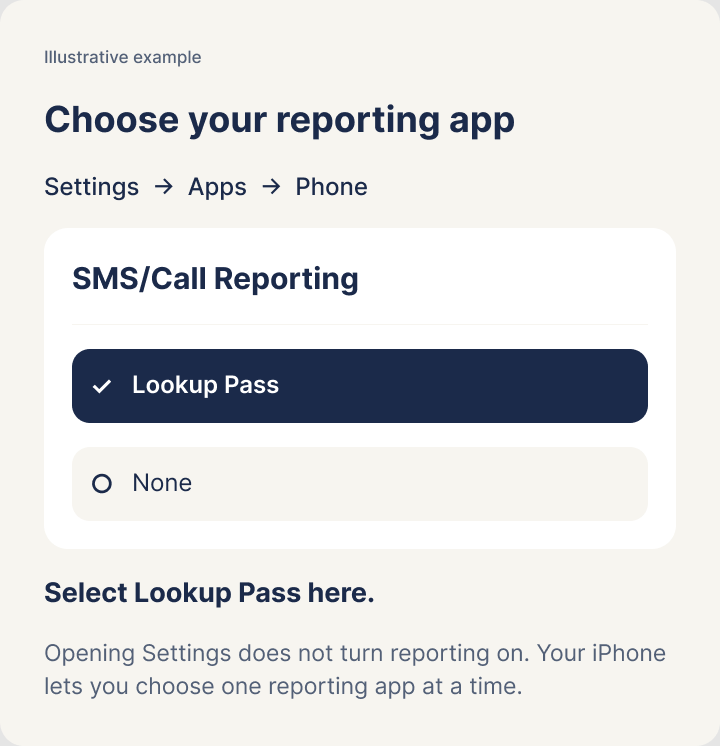
First, choose Lookup Pass for reporting
This lets you send an unwanted caller or sender to Lookup Pass from supported iPhone screens.
- Open Lookup Pass and sign in.In My Pass, open the setup guide and check reporting access. “Ready” means your account access is prepared; it does not mean the iPhone setting is on.
- Open iPhone Settings.Go to Apps → Phone → SMS/Call Reporting. On older iOS versions, Phone may appear directly in Settings.
- Select Lookup Pass.iPhone allows one reporting app at a time. You choose it here; Lookup Pass cannot turn this setting on for you.
Reporting is separate from call blocking and text filtering. You can review the setup guide again in My Pass at any time.
Report an unwanted call
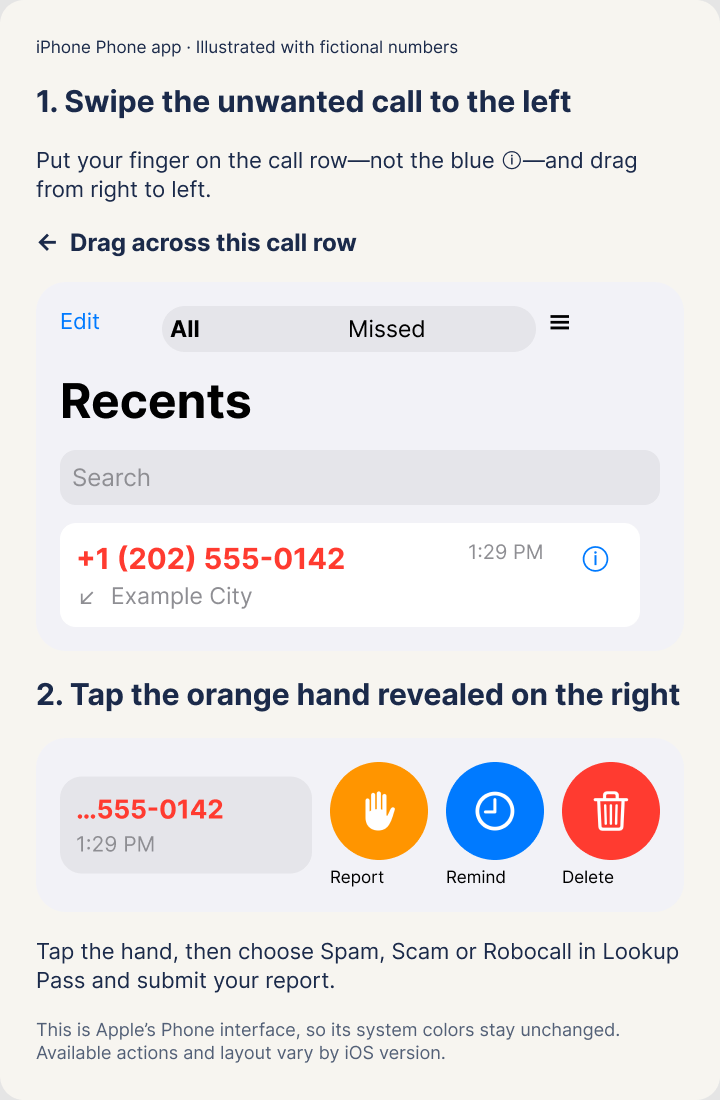
- Find the call in Phone.Open Phone → Recents. Put your finger on the unwanted call row and drag it from right to left to reveal the available actions.
- Choose Report.On supported screens, look for the orange hand report action. The available action and appearance depend on your iOS version and the call.
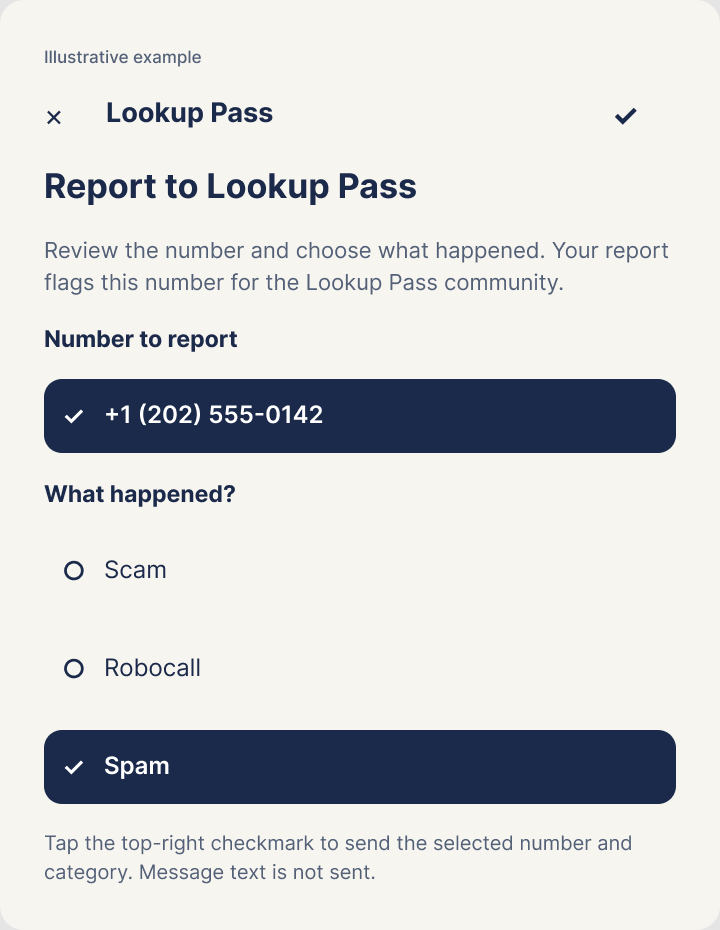
- Check the number and category.The screen should say “Report to Lookup Pass.” Choose Spam, Scam or Robocall to describe what happened.
- Finish with Done or the checkmark.This hands the report to iOS for delivery. It is not a separate confirmation that Lookup Pass has received it. Cancel exits without sending.
Report only a number involved in the unwanted call. Once Lookup Pass accepts a report, it flags that number for the community.
Report an unwanted text
Use this when Messages offers the reporting action for a supported SMS sender. It may not appear for every conversation or message type.
- Open the conversation in Messages.Choose Report Messages when it appears. Where supported, you can also touch and hold a message, select messages, then choose Report Messages.
- Confirm that Lookup Pass opens.Look for “Report to Lookup Pass.” Apple's own Report Junk action is a different reporting flow.
- Review, choose a category, then finish.Select the sender number and Spam, Scam or Robocall. Tap Done or the checkmark to hand the report to iOS, or Cancel to leave without sending.
Lookup Pass sends the selected phone number and category, not the message text. Email senders, hidden numbers and short codes cannot be reported through this feature.
The native call-reporting flow has been verified in private testing. Physical-device verification of the Messages flow is still pending.
Reporting questions
Why don't I see the orange hand or Report action?
First check that you have the iPhone update with reporting support, then select Lookup Pass in Settings → Apps → Phone → SMS/Call Reporting. Return to Phone and check the actions available for that call. iOS controls where reporting appears; the version, call or message type, and whether the sender is a contact can affect the available actions. Not every screen offers reporting.
The app says Ready. Is reporting enabled?
Ready means your Lookup Pass account access is prepared. You still need to select Lookup Pass in iPhone Settings. The app cannot confirm that selection just because you opened Settings.
Who receives my report, and what do they receive?
This feature sends the selected phone number and category to Lookup Pass, along with the information needed to authenticate and process the report. It does not send message text. It is not a report to Apple or your mobile carrier.
Does one report count? Does it block the number?
One accepted report flags the number for the Lookup Pass community. Reporting does not automatically block that number on your phone. Use your phone's blocking controls if you also want to block it.
Why isn't my report in History?
History shows your lookups. Reporting a number from Phone or Messages does not necessarily create a lookup entry. A dismissed reporting screen is also not proof of delivery. If you need help confirming a report, contact support with the approximate time and number.
Is reporting the same as text filtering or caller ID?
No. Reporting is your decision to flag a caller or sender. Text filtering sorts supported incoming texts using a separate Messages setting. Call screening uses a separate Phone setting. Live Caller ID is a separate feature and is not enabled by selecting a reporting app.
The report screen asks me to sign in. What should I do?
Open Lookup Pass, sign in and refresh reporting access in My Pass. Then return to the call or message and try again. If access remains unavailable, contact support. No report is sent while the screen says reporting access is unavailable.
Which numbers can I report?
This feature accepts supported +1 phone-number formats. It does not support email senders, hidden numbers or short codes. Check that the selected number is the actual caller or sender you intend to report.
Native actions follow Apple's SMS and Call Spam Reporting documentation. Their availability and presentation are controlled by iOS.
Other setup help
Enable call screening
On iPhone, open Settings → Apps → Phone → Call Blocking & Identification and enable Lookup Pass. This is separate from SMS/Call Reporting. On Android, follow the app's prompt to choose Lookup Pass for caller ID and spam screening. Available caller details depend on the data returned; a caller name is not guaranteed.
Enable text filtering on iPhone
Open Settings → Apps → Messages → Unknown & Spam and select Lookup Pass under SMS Filtering, where available. Text filtering and reporting are separate choices. If your iOS version uses different labels, open the setup guide in My Pass for help.
Protect your own number
Protecting a number checks it monthly and emails you when its spam labeling, available caller ID or carrier details change. An individual pass includes one protected number; Family includes more. Marking a number as belonging to this phone does not itself use a protected-number slot.
Look up a number
Enter the number on Home in Lookup Pass. When an app offers Share for a number, you can also choose Lookup Pass from the share sheet. Your lookup results appear in History. No spam warning is not a guarantee that a call or text is safe.
Billing and your account
Managing or cancelling a subscription
If you subscribed inside the iPhone app, manage it in Settings, then your name, then Subscriptions — Apple handles billing and cancellation. In the Android app it's Google Play, then Payments and subscriptions. If you subscribed on the website, use Billing in your account.
Deleting your account
In the app, open My Pass and choose Delete Account, or use our account deletion page. After ownership verification, account access is disabled and deletion of your profile, lookup history, protected numbers and personal data is queued. Required review and connected processor cleanup may remain pending. Only transaction, consent and deletion records required under our Privacy Policy are retained. Completed deletion cannot be undone. If Apple or Google bills your subscription, deleting the account does not stop the charge — cancel it in the store as well, using the steps above.
What happens to numbers I look up?
They're stored against your account so History works, and they're covered by our privacy policy. When you choose to report a call or text, iOS shares the selected sender with the reporting extension. Lookup Pass sends the selected phone number and category, not message text.
Still stuck
Email support@verirouteintel.com and tell us what you were doing and what happened. If it's about a specific number, include it.
Lookup Pass is a service of First Light Holdings, LLC DBA VeriRoute Intel · 4030 Wake Forest Rd Ste 349, Raleigh, NC 27609